
Table of Contents
- Roles and access
- Register absence
- Entries in the balance
- Approve or reject absence
- The absence calendar
- Overlapping absence
- How days are counted
- Company-specific days off
- Norwegian self-certification
- Integrations
- FAQ
Roles and access
| Access | Role |
|---|---|
| Register own absence | All employees — built into Huma, no role required |
| Own absence automatically approved (even if absence type requires approval) | Standard role: On their own profile → Absence → Full access |
| Own absence requires approval | Standard role: On their own profile → Absence → No access |
| See and manage absence on colleagues' profiles | Standard role: On other people's profiles → Absence |
| Add, update and delete absence on behalf of others, approve and reject requests, transfer days, adjust balance | User role: See and edit → Absence |
| Configure absence settings and export absence data | System role: Absence → Absence management |
💡 The "On their own profile → Absence" setting in the standard role controls whether employees' own absence registrations are automatically approved or sent to Pending, not whether they can register absence at all.
Register absence
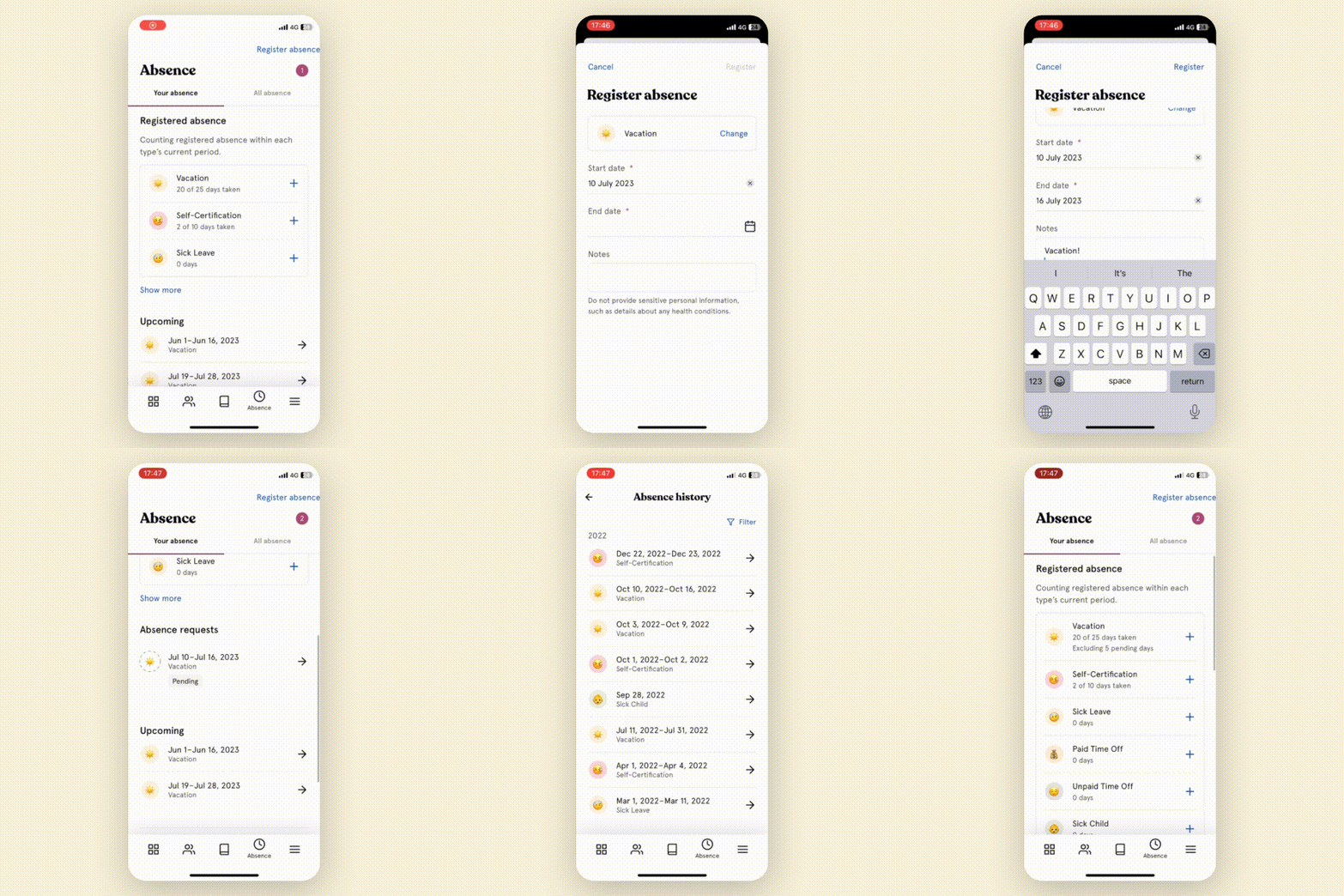
All employees can register their own absence. Administrators and users with absence management access can register absence on behalf of others.
- Go to the Absence module
- Click "Register absence"
- Choose an absence type
- Fill in the time period, percentage (if graded absence is enabled) and any notes
- Click "Register" if you have absence management access, or "Request" if you are registering as an employee and the absence type requires approval
💡 Note
- If the absence type has an absence policy with restrictions, for example self-certification, Huma warns you before you submit if the entry would break a restriction.
- If you register absence without an end date, “Counts as” shows “1 entry”. The number of days is counted once the end date is added.
- After registering absence, you can click on it to add it to an external calendar (Outlook, Google or ICS file), or edit it if changes occur.
🔗 Read more about self-certification restrictions.
🔗 Read more about roles, approvals and notifications in Absence.
📱Tell your employees that they can easily register absence in the app!
Entries in the balance
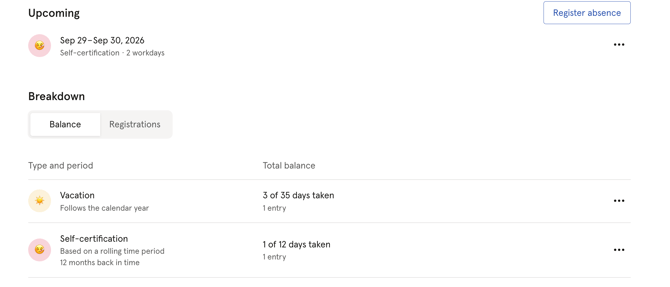
Next to the number of days, the balance shows how many entries have been registered in the time period — for example "2 entries". You'll see this:
-
In the balance overview on the employee's Absence tab
-
In the balance details for the absence type
-
Under "Total balance after registration" when registering absence
💡 Note
-
An entry counts once per time period, no matter how many days it lasts.
-
Pending entries are shown on their own line, for example "Pending: 1 entry · 2 days".
-
Rejected and cancelled entries are not counted. An entry without an end date counts in the time period it starts in. Once the end date is added, it counts in every time period its dates overlap.
-
If a self-certification policy limits the number of entries, the balance shows how many are used, for example "1 of 4 entries used".
🔗 Read more about self-certification restrictions.
Approve or reject absence
If an absence type requires approval, employees will see their registration as "Pending" until it is approved or rejected by a user with absence management access. Once the action is done, the employee will be notified.
To approve or reject a pending absence request:
- Go to the Absence module
- Click "Absence requests" in the top right corner
- Review the pending requests and click "Approve" or "Reject"
- Optionally add a comment before confirming
💡 Managers can also find absence request within "Quick actions" on their dashboard.
💡 You can always withdraw an approval or rejection, or change the status of an absence entry later.
🔗 Read more about how approvals work in Absence.
The absence calendar
The absence calendar gives you a visual overview of who is away and when. You can filter by absence type, teams and locations to narrow down the view.
- Navigate to the Absence module
- Click "Calendar"
What you can see in the calendar depends on your role:
| Who | What they see |
|---|---|
| Absence administrators | All absence in full — type, dates and details |
| Employees | Approved absence shown as "Away" for private absence types — within one month of the current date only |
💡 Private absence entries are visible for their entire duration, even if they only partially fall within the one-month window. If absence begins within the window and continues beyond it, the entire absence is shown.
💡 To navigate the calendar, use the arrows to move forward or backward in time. Use the filters to show groups, and click “Holidays” to choose which public holidays and custom holidays to show.
⚠️ Note that private absence entries are limited to one month back and forth for regular employees.
Overlapping absence
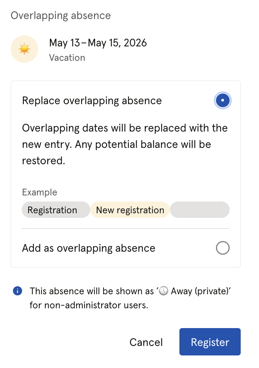
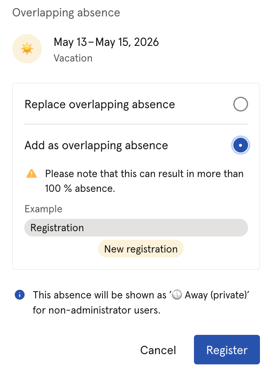
Only users with absence management access can register overlapping absence, and employees cannot register overlapping absence themselves.
When registering absence that overlaps with an existing entry, you will be asked to choose one of two options:
| Option | What happens |
|---|---|
| Replace overlapping absence | The overlapping dates are replaced with the new entry. Any balance that was deducted is restored. |
| Add as overlapping absence | Both entries exist at the same time. Note: this can result in more than 100% absence. Absences of the same type will be cancelled. |
How days are counted
Huma counts absence days based on the employee’s work schedule, which defines their working days, public holiday calendar and any custom holiday calendars, and the settings for the absence type and policy.
💡 The balance always counts absence based on the workdays in the work schedule. Weekends and public holidays are not counted, even where country-specific rules would include them, for example Norwegian self-certification (egenmelding). To check self-certification limits in calendar days, use restrictions on the self-certification policy.
Example — Norwegian self-certification:
- Employee is sick on Friday and the following Monday → Norwegian rules: 4 days. Balance in Huma: 2 workdays. Restrictions counted in calendar days: 4 days.
- Employee is sick on Friday, Saturday and Sunday → Norwegian rules: 1 day. Balance in Huma: 1 workday. Restrictions counted in calendar days: 3 days.
💡 Note
-
If your organisation follows country-specific counting rules that differ from Huma's general counting rules, you can correct the balance with a manual balance adjustment. This doesn't change the original absence registration. Manual balance adjustments are only available on policies that use "Limit number of days" with a calendar year time period. For self-certification, use restrictions instead.
- For self-certification, restrictions can count calendar days when checking the limits. Sick on Friday and Monday then counts as 4 days against the limit. The absence itself is still counted in workdays in the balance.
🔗 Read more about manual balance adjustment.
🔗 Read more about work schedules.
🔗 Read more about restriction for Self-Certification.
Company-specific days off
Company-specific days off
Public holidays are predefined based on the country you selected on the work schedule, and can’t be edited. If your organisation has days off that aren’t official public holidays, for example Christmas Eve in Norway, add them to a custom holiday calendar.
Example — Norway:
- 24 December (Christmas Eve) isn’t an official public holiday. Without a custom holiday calendar, it counts as a vacation day if registered.
- Add 24 December to a custom holiday calendar and assign it to the work schedule. It’s then a non-working day and isn’t deducted from the balance.
⚠️ Absence that is already registered isn’t recalculated when you add a date. Add company days off before employees register absence for that period, for example at the start of the year.
💡 Not using custom holiday calendars? Employees can register “Paid time off” instead of vacation on those days, so the vacation balance stays intact.
🔗 Read more about custom holiday calendars.
🔗 Read more about work schedules.
Norwegian self-certification (4x3 rule)
In Norway, self-certification is typically limited to 4 periods of up to 3 days each within a rolling 12-month period. You can set up this rule — and other Nordic rules — with restrictions on the self-certification policy. Huma then stops registrations that go over the limits.
💡 The limits only apply if restrictions are set up on the policy. If your self-certification policy uses "Limit number of days", Huma doesn't stop registrations, and you need to follow up the limits manually, for example with the absence export or the sick leave report.
🔗 Read more about self-certification restrictions.
🔗 Read more about absence export.
Integrations
When you add, edit, or delete absence in Huma after turning on absence synchronization, the changes will automatically be updated in the integration.
🔗 Read more here about how integrations that support absence sync handle this.
FAQ
Can I register absence by the hour?
No. Absence in Huma is registered by date, not by the hour. You can add a note to include specific details such as hours or times. If you need to register partial absence, you can use the graded absence feature to register a percentage, for example 50% sick leave.
🔗 Read more about graded absence in Absence types.
How do I register self-certified sick leave as multiple separate periods?
Self-certified sick leave is registered as single periods in Huma. If you need to register several separate periods, simply add multiple entries for each period.
Can I set specific hours for an absence registration?
Absence is registered by date in Huma. You can add a note to specify hours or times, but the absence itself will be counted in days based on the work schedule.
What happens if I register absence for a period where the employee has no policy?
Dates not covered by a policy will be greyed out and blocked when registering absence. The employee or administrator will see the message "This date is blocked since it is not covered by any policy."
🔗 Read more about absence policies.
Why can't I register absence for a date in the past?
If the dates are highlighted in red when you try to register absence, it is likely because the date falls outside the active period of the employee's absence policy. For example, if the policy uses a rolling 12-month period, only the last 12 months from today are available. Dates before that period cannot be selected.
To register absence for a date outside the current policy period, you may need to check the policy setup and whether the employee was assigned to the correct policy at that time.
🔗 Read more about absence policies and time periods.
Where can I see public holidays and custom holidays?
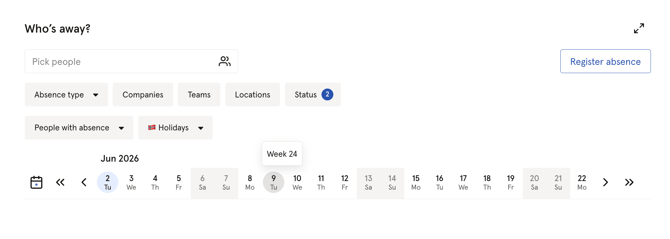
Both are shown in the absence calendar as highlighted dates. Click “Holidays” to choose which ones to show. Hover over a date to see which country or custom holiday calendar it belongs to. Which holidays apply to an employee depends on the public holiday calendar and custom holiday calendars on their work schedule.
Can I see week numbers in the absence calendar?
Yes. Week numbers are available in the absence calendar. Hover over any date to see the week number displayed in a tooltip.
What happens when an employee exceeds their absence balance?
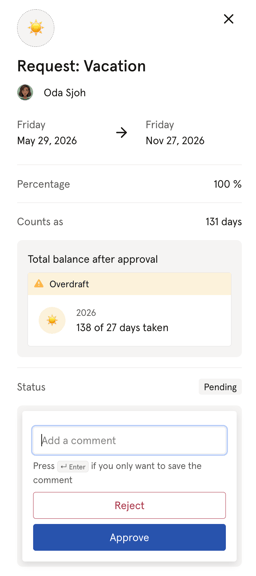
Even if an employee has used up all their available absence days, they can still register absence of that type. The balance will then show as "Overdraft", meaning the employee has registered more absence than they are entitled to.
Administrators and managers with absence management access will always be able to see when a balance is in overdraft. If the absence type requires approval, the approver will see the overdraft status when reviewing the request.
💡 Overdraft is not automatically blocked in Huma. It is up to the administrator or manager to decide whether to approve or reject absence requests when the balance is exceeded.
Why does the number of entries in the balance differ from what I see in the calendar?
The balance counts entries within the current time period. Rejected or cancelled entries are never counted. An entry without an end date counts in the time period it starts in, and an entry that spans two time periods is counted in both.