
Table of Contents
- Documents in the app
- Roles and access
- Find a document
- Preview a document
- Upload a document
- Share files from other apps to Huma
- Share, download and more
- What to do on web
- FAQ
Documents in the app
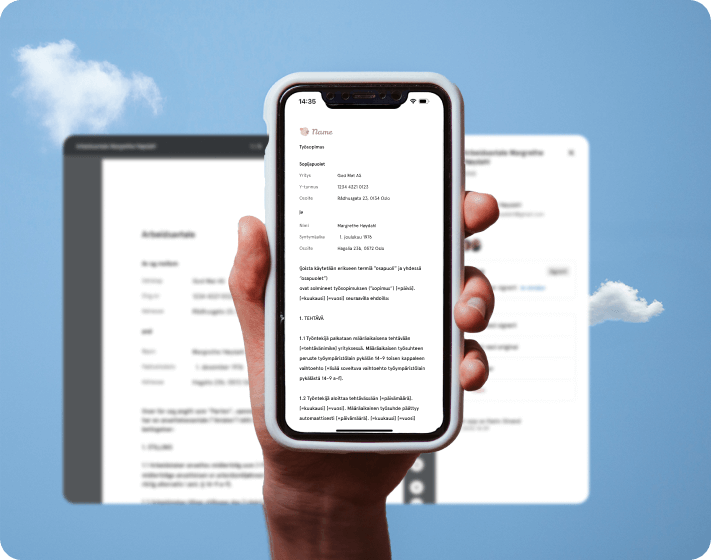
With the Documents module in the app, you have your documents with you wherever you are. Find a contract in seconds, preview it on your phone, or upload a document straight from your camera.
You find documents in two places:
- Documents in the tab bar or in the Menu
- On a colleague's profile, if you have access to see their documents
Roles and access
| Access | Role |
|---|---|
| See and preview documents shared with you | All employees with access to the Documents module |
| Upload documents to your own profile | All employees with access to the Documents module |
| Upload documents for others | User role or system role with access to manage documents |
| Edit access, archive or delete a document | Users with See and edit access to the document |
The access levels for a document are the same as on web:
- Only see: can view the document
- See and edit: can view, edit access, archive and delete the document
- No access: cannot see the document
💡 You only see the documents you have access to, just like on web.
🔗 Read more about document access levels
Find a document
- Tap "Documents" in the tab bar or in the Menu
- Scroll through the list, or use sorting and filters to narrow it down
You can filter by:
- Category and Type
- Status: active or archived documents
- Created by, Regarding and Shared with
- Valid on: documents that are valid on a specific date
- Signing status
💡 If the list is empty after filtering, tap "Reset filters" to see all documents again.
Preview a document
Tap a document to preview it in the app.
The document can show a validity status:
- Valid: the document is valid
- Expiring: the document expires soon
- Expired: the validity period has ended
💡 Smart documents can be previewed in the app, but you edit them on web. Tap "Edit in browser" to open the document in Huma on web.
🔗 Read more about validity and archive
Upload a document
- Open "Documents", or go to the profile you want to upload the document to
- Tap "Add document"
- Choose "Take photo", "Browse photos" or "Choose from files"
- Fill in the document details, for example document name, regarding, category and validity period
- Choose who should have access
- Tap "Save", or "Save and notify" to send a notification to the people you share the document with
💡 The maximum file size is 10 MB.
🔗 Read more about uploading documents
Share files from other apps to Huma (iPhone)
On iPhone, you can send a file or an image from another app straight to Huma, for example a certificate you received by email.
- Open the file or image in the other app, for example Mail, Files or Photos
- Tap the Share icon
- Choose Huma
- Fill in the document details and choose who should have access
- Tap "Save"
💡 The document is uploaded to your own documents. You can share one file at a time.
💡 If you are not logged in, open the Huma app and log in first.
📱 On Android: This is not available yet. Use "Add document" in the app instead.
Share, download and more
Tap ••• next to a document to see more options. Depending on your access, you can:
- Share link: send a link to the document. The recipient must have access to the document in Huma to open it.
- View details: see who created the document, who it regards and who has access
- Edit access: change who can see or edit the document
- Archive or Unarchive: move the document to or from the archive
- Delete: delete the document permanently
📱 On Android: You can also tap "Download" to save the document to your phone.
⚠️ Deleting a document cannot be undone. If the document is signed or waiting for signatures, the signing process is also affected.
🔗 Read more about transferring document access
What to do on web
Some document features are only available in Huma on web:
- Send documents for signing
- Create and edit smart documents
- Create and manage document templates and document styles
- Set up document administrators
FAQ
Why can't I see a document in the app?
You only see documents you have access to. Check your filters, and tap "Reset filters" if needed. Contact your administrator if you think you should have access.
Can I send a document for signing from the app?
No. Sending documents for signing is done in Huma on web. In the app, you can see the signing status of a document.
Why can't I edit a smart document in the app?
Smart documents are edited on web. Tap "Edit in browser" to open the document in Huma on web.
Why does it say the file is too large?
The maximum file size is 10 MB. Try compressing the file, or upload it from Huma on web.
Can I share a file from another app to Huma on Android?
Not yet. On Android, use "Add document" in the Huma app.