
Table of Contents
- Absence in the app
- Roles and access
- Register absence
- Your absence
- See absence details
- All absence and the calendar
- Handle absence requests
- Overlapping absence
- The "Who's away?" widget
- What to do on web
- FAQ
Absence in the app
With the Absence module in the app, you can register absence, check your balance and see who is away, all from your phone. Managers can also approve or reject absence requests on the go.
The Absence page has two tabs:
- Your absence: your own upcoming absence, requests, history and balance
- All absence: absence for the colleagues you have access to see
💡 Tap the calendar icon at the top of the page to open the absence calendar.
Roles and access
| Access | Role |
|---|---|
| Register and see your own absence | All employees with access to the Absence module |
| See colleagues' absence | Based on your access, just like on web |
| Register absence for others | User role or system role with access to manage absence |
| Approve or reject absence requests | Supervisor or user role with access to approve absence |
| Delete or change the start date of ongoing or past absence | Administrators with access to manage absence |
| Register and resolve overlapping absence | Administrators with access to manage absence |
💡 The app follows the same roles and access as Huma on web.
🔗 Read more about roles, approvals and notifications in absence
Register absence
- Tap "Absence" in the tab bar or in the Menu
- Tap "Register absence" in the top right corner
- Choose the absence type
- Choose a start date and an end date
- Fill in any other fields shown for the absence type, for example percentage, notes or work related
- Check how many days the absence counts as, and what your balance will be after registering
- Tap "Register"
💡 You can also register absence from Quick actions on the dashboard.
🔗 Read more about how absence works in Huma
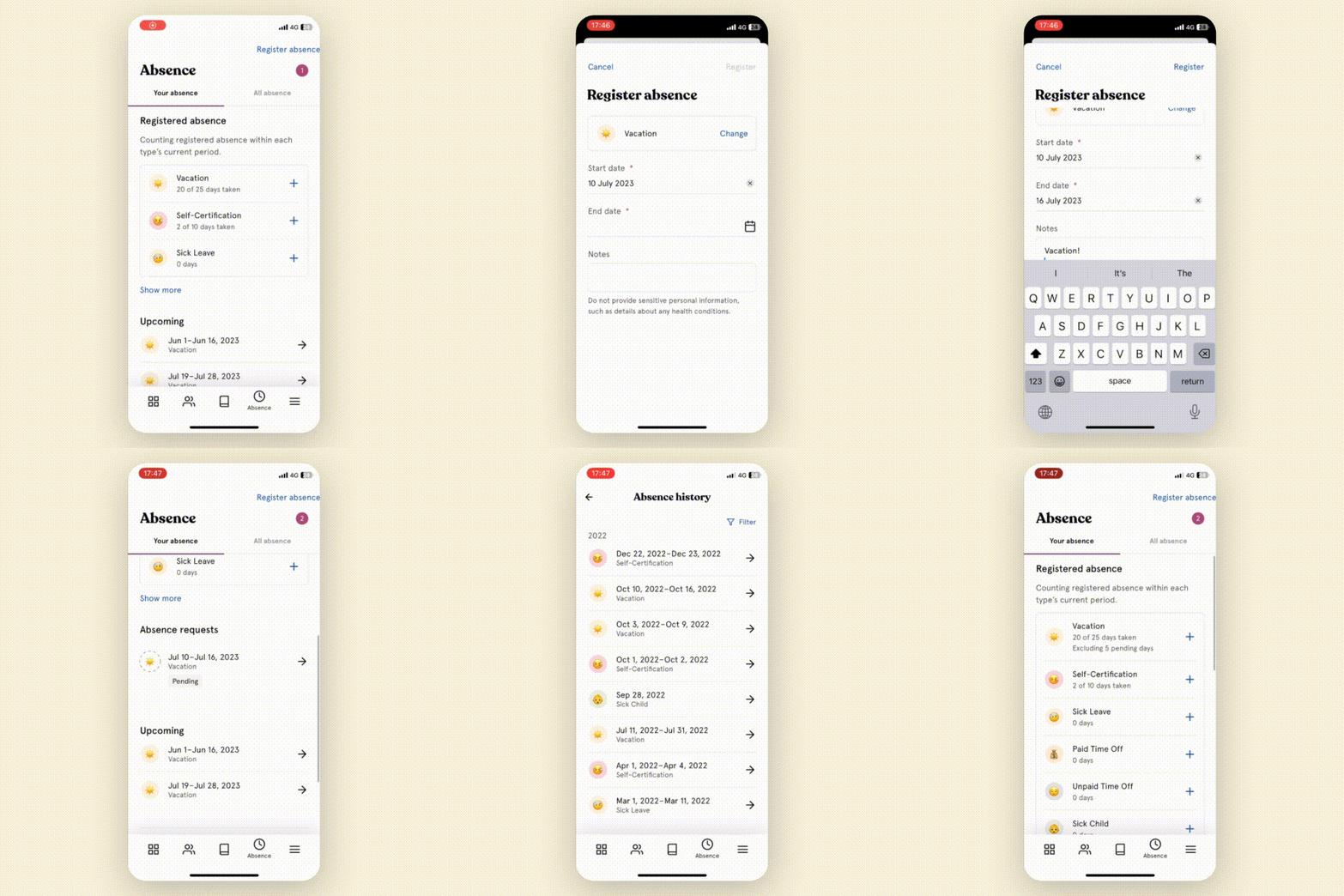
Your absence
Under Your absence, you can see:
- Upcoming: absence that is ongoing or starts in the future
- Absence requests: requests waiting for approval, and their status
- History: your past absence
- Balance: how many days you have used and have left for each absence type in the current period
To edit or delete an absence:
- Tap the absence in the list
- Tap "Edit" or "Delete"
⚠️ Only administrators can delete an ongoing or past absence, or change its start date. Contact your manager or administrator if something needs to be corrected.
See absence details
Tap an absence to see its details, for example the status, the period and how many days it counts as.
From the details, you can also:
- Set end date, if the absence does not have one yet
- Add to calendar: add the absence to your phone's calendar. This is only available for absence with an end date.
💡 For sick leave, you may also see a Sick leave follow-up card. It shows the status of the follow-up and who is responsible. The follow-up itself is managed on web.
🔗 Read more about working with sick leave follow-up
All absence and the calendar
Under All absence, you can see absence for the colleagues you have access to see. Tap the date to show absence from a different date.
To see who is away over a period:
- Tap the calendar icon at the top of the Absence page
- Swipe or use the arrows to move between periods
💡 Private absence is shown as "Away" to users without access to see the details.
Handle absence requests
If you approve absence for others, you can handle requests directly in the app.
- Open "Absence"
- Tap "Absence requests" at the top of the page
- Add a comment if you want
- Tap "Approve" or "Reject"
💡 Note
-
Changed your mind? Tap "Withdraw approval" or "Withdraw rejection" to set the request back to pending.
-
Managers may also see absence requests under Quick actions on the dashboard.
-
📱 On Android: You can also add an absence request to your calendar from the menu on the request card.
🔗 Read more about roles, approvals and notifications in absence
Overlapping absence
If a new absence overlaps with an existing one, the app asks how to handle it. Administrators can choose to:
- Replace overlapping absence: the overlapping dates are replaced with the new absence, and any balance is restored
- Add as overlapping absence: both absences are kept, which can result in more than 100 % absence
💡 Only administrators can register and resolve overlapping absence. If you are not an administrator, contact your manager or administrator.
The "Who's away?" widget
Add the Huma widget to your phone's home screen to see who is away today and over the next 7 days, without opening the app.
- Touch and hold an empty area on your home screen
- Add a widget and search for Huma
- Choose the "Who's away?" widget
💡 The widget is available on both iPhone and Android. You must be logged in to the app for it to show data.
🔗 Read more about the dashboard in the app
What to do on web
Some absence settings are only available in Huma on web:
- Set up and activate the Absence module
- Create and edit absence types and policies
- Assign people to absence policies
- Transfer days and make manual adjustments
- Export absence
FAQ
Why does it say "Request absence" instead of "Register absence"?
The absence type requires approval. Your manager must approve the request before the absence is approved.
Why can't I delete my absence?
Only administrators can delete an ongoing or past absence. You can still delete absence that has not started yet. Contact your manager or administrator if a past absence is wrong.
Why don't I see Absence in the app?
The Absence module must be activated for your organisation, and you must have access to it. If the module is not activated, ask your administrator to set it up on web.
Why can't I add an absence to my calendar?
You can only add absence with an end date to your calendar. The app also needs access to your phone's calendar. You can turn this on in your phone's settings.
Can I export absence or transfer days from the app?
No. Exports, transfers and manual adjustments are done in Huma on web.