
Table of Contents
- Roles and access
- What are self-certification restrictions?
- Set up restrictions on a policy
- Presets
- The restriction settings
- Calendar days or workdays?
- What happens when a registration breaks a restriction
- Entries without an end date
- See how many entries are used
- Change or turn off restrictions
- What restrictions don't cover
- Move employees from an existing policy
- FAQ
Roles and access
| Access | Role |
|---|---|
| Set up and change restrictions on self-certification policies | System role: Absence → Absence management |
| Register self-certification within the restrictions | All employees assigned to the policy — no role required |
💡 Restrictions apply to everyone who registers self-certification, including administrators registering on behalf of an employee.
What are self-certification restrictions?
A self-certification policy can limit absence in one of two ways. You choose one of them per policy — you can't combine them.
| Limit number of days | Restrictions | |
|---|---|---|
| What it does | Gives employees a balance of days per time period | Decides whether a new entry can be registered at all |
| Blocks registration | No — the balance can go into overdraft | Yes — an entry that breaks a restriction can't be saved |
| Limits the number of entries | No | Yes |
| Limits the length of one entry | No | Yes |
| Can count weekends and public holidays | No — follows the work schedule | Yes — choose calendar days or workdays |
💡Note
-
Restrictions are only available for absence types based on Self-certification.
-
Restrictions decide whether an absence can be registered. They don't change how many days the absence counts as in Huma — that still follows the employee's work schedule.
🔗 Read more about absence policies.
Set up restrictions on a policy
- Go to the Absence module
- Navigate to "Settings"
- Under “Absence types and policies”, click Self-certification (or your custom type based on it)
- Click "Add policy"
- Fill in the name and time period
- Turn on "Restrictions". Make sure "Limit number of days" is turned off
- Choose a preset, or choose "Custom" and fill in the fields yourself
- Adjust the fields if needed
- Click "Save"
💡 Note
-
The restrictions are counted within the policy's time period. For the Norwegian presets, a rolling 12-month time period is usually the right choice.
-
You can also set up restrictions during the initial absence setup, in the policy step.
-
⚠️ An existing policy that uses "Limit number of days" can't be switched to restrictions. Create a new policy with restrictions and reassign employees to it.
🔗 Read more about how to assign employees to absence policies.
Presets
A preset fills in all the restriction fields for you. If you change the fields afterwards, the preset changes to "Custom".
| Preset | Max entries per time period | Max days per entry | Max days per time period | Days counted in |
|---|---|---|---|---|
| Norway • 3 × 4 | 4 | 3 | Unlimited | Calendar days |
| Norway • IA agreement | Unlimited | 8 | 24 | Calendar days |
| Sweden | Unlimited | 7 | Unlimited | Calendar days |
| Finland | Unlimited | 3 | Unlimited | Workdays |
| Custom | You fill in the fields yourself |
The restriction settings
All fields are optional. A field left empty means there is no limit for that setting.
| Setting | Description |
|---|---|
| Max days per entry | The longest a single entry can last |
| Max days per time period | The most days allowed within one policy time period |
| Count limits in | Whether the two day limits above are counted in calendar days or workdays |
| Max entries per time period | The most entries allowed within one policy time period |
Calendar days or workdays?
| Option | What counts | Example: sick Friday to Monday |
|---|---|---|
| Calendar days | Every day, including weekends and public holidays otherwise excluded by the work schedule | 4 days |
| Workdays | Only scheduled workdays, excluding public holidays | 2 days (Monday–Friday schedule) |
💡 Note
-
"Max days per entry" can't be higher than "Max days per time period". Huma won't let you save a policy where it is.
-
The restrictions apply to each person individually. They don't limit how many people can be absent at the same time.
What happens when a registration breaks a restriction
Huma checks the restrictions when self-certification is registered, and again when the dates or the absence type of an existing entry are changed.
Before you submit
When you fill in the dates, Huma warns you if the entry would break one or more restrictions. The warning says “The applicable absence policy does not allow this absence”, followed by what would be exceeded. For example:
- “This absence is 4 calendar days, 1 more than the 3 allowed for a single absence.”
- “This absence takes the time period to 26 calendar days, 2 more than the 24 the policy allows.”
- “This would be 5 absences within one time period, 1 more than the 4 the policy allows.”
You can still submit the entry. Usage can change before you submit, for example if a pending entry is rejected.
When you submit
If the entry still breaks a restriction, it isn’t saved. The warning turns into an error, and you can’t submit again until you change the dates or the absence type.
💡 Changing only the note or the grade of an existing entry doesn’t trigger the check.
Entries without an end date
If the absence type doesn’t require an end date, an employee can start self-certification without one. Huma then checks the restrictions in two steps.
| When | What is checked |
|---|---|
| When the self-certification is started | Max entries per time period |
| When the end date is added | Max days per entry, max days per time period and max entries per time period |
An entry without an end date counts as one entry in the time period it starts in. Once the end date is added, it counts in every time period its dates overlap.
💡 An employee who has used all their entries in the time period is stopped as soon as they try to start self-certification, not when they add the end date. If they need to be absent, register the absence with a different absence type, for example sick leave with a doctor’s note.
⚠️ The end date can’t be saved if it reaches into a later time period that has already reached max entries. This can happen when an entry runs into a new time period, for example from one calendar year to the next.
🔗 Read more about the "Require end date" setting in Absence types.
See how many entries are used
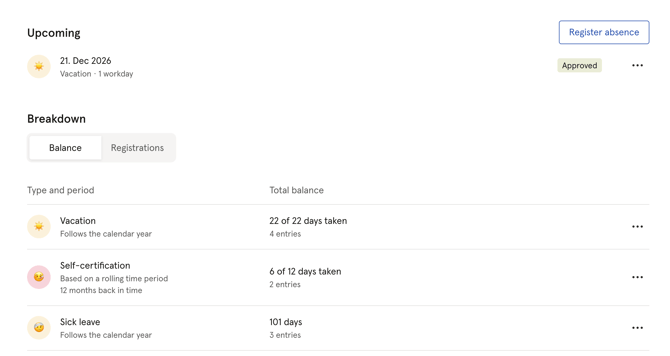
When a policy limits the number of entries, the balance shows how many are used, for example "1 of 4 entries used". You'll see this:
- In the balance overview on the employee's Absence tab
- In the balance details for the absence type
- Under "Total balance after registration" when registering absence
⚠️ The count includes approved entries, also those without an end date. Pending entries are shown on a separate line, for example “Pending: 1 entry”. Both count toward the limit when Huma checks the restrictions. This means an employee with “3 of 4 entries used” and “Pending: 1 entry” has already reached the limit.
🔗 Read more about registering and managing absence.
Change or turn off restrictions
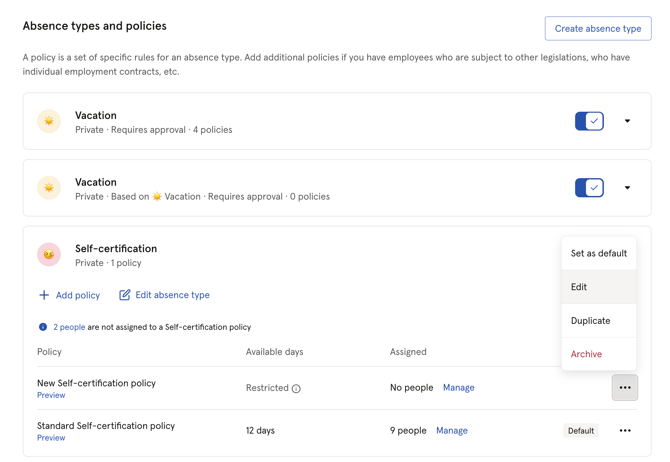
You can change the restriction fields on an existing policy at any time. Only "Time period" is locked once the policy has been created.
-
Go to the Absence module
-
Navigate to "Settings"
-
Under “Absence types and policies”, click Self-certification
-
Click the three dots next to the policy and select "Edit"
-
Change the fields, or turn off "Restrictions"
-
Click "Save"
💡 Note
-
If you turn off "Restrictions", Huma keeps the values you entered. When you turn it back on, the same values apply again.
-
⚠️ Changes apply to new registrations and to changes in dates from now on. Entries that are already registered are not checked again.
What restrictions don't cover
-
The 16-day employer period (arbeidsgiverperiode) — Huma does not check this rule. Follow it up manually.
-
Length of employment — Huma does not check whether the employee has been employed long enough to use self-certification. Control this through which employees you assign to the policy.
-
Earlier registrations — turning on restrictions doesn't flag employees who are already over the limit. They will be stopped the next time they register.
-
Notifications — managers and administrators are not notified when an employee is close to or has reached a limit.
💡 Use the absence export or the sick leave report to keep an eye on self-certification use across your organisation.
🔗 Read more about the absence report.
Move employees from an existing policy
If your employees already have a self-certification policy, you need to create a new policy with restrictions and move them to it. An employee can only be assigned to one policy per absence type at a time.
Before you start
⚠️ If your employees already have a self-certification policy, that uses "Limit number of days" take an absence export first. If your organisation has transferred self-certification days between periods, those days won't carry over to the new policy. The export gives you a record of the balances before the move.
🔗 Read more about absence export.
Move your employees
- Create a new self-certification policy with restrictions
- Turn on "Default for new employees" on the new policy, so new hires are assigned to it
- Reassign your employees from the old policy to the new one, and set an effective date — for example today's date
- When all employees have been moved, archive the old policy
🔗 Read more about how to assign employees to absence policies.
Good to know
⚠️ Always set an effective date when you reassign. If you leave it empty, the new policy replaces all previous policy assignments for self-certification, and the employee's history is moved to the new policy.
⚠️ Existing entries count. When Huma checks the restrictions, it counts all self-certification the employee has registered within the new policy's time period — including entries registered under the old policy. An employee who has already used 4 entries in the last 12 months will be stopped the next time they register on a 3 × 4 policy.
💡 Self-certification registered for a date before the effective date is checked against the old policy, not the restrictions.
💡 Manual balance adjustments and transfers are only available on policies that use "Limit number of days" with a calendar year time period. They can't be used on a policy with restrictions or a rolling time period.
FAQ
Can an administrator register self-certification that breaks a restriction?
No. The restrictions apply to everyone, including administrators registering on behalf of an employee. If the employee needs more days, register the absence with a different absence type, for example sick leave with a doctor's note.
Why can't I turn on "Restrictions" on my existing policy?
The policy uses "Limit number of days", and you can't use both on the same policy. Create a new policy with restrictions and reassign employees to it.
Do rejected or cancelled entries count against the limit on entries?
No. Only approved and pending entries count.
Can I use restrictions on other absence types, like sick child?
No. Restrictions are only available for Self-certification and custom types based on it.
What happens to transferred self-certification days when I move employees to a policy with restrictions?
They don't carry over. Transferring days isn't possible on a policy with a rolling time period, and a policy with restrictions has no day balance. Take an absence export before you move your employees, so you have a record of the balances.